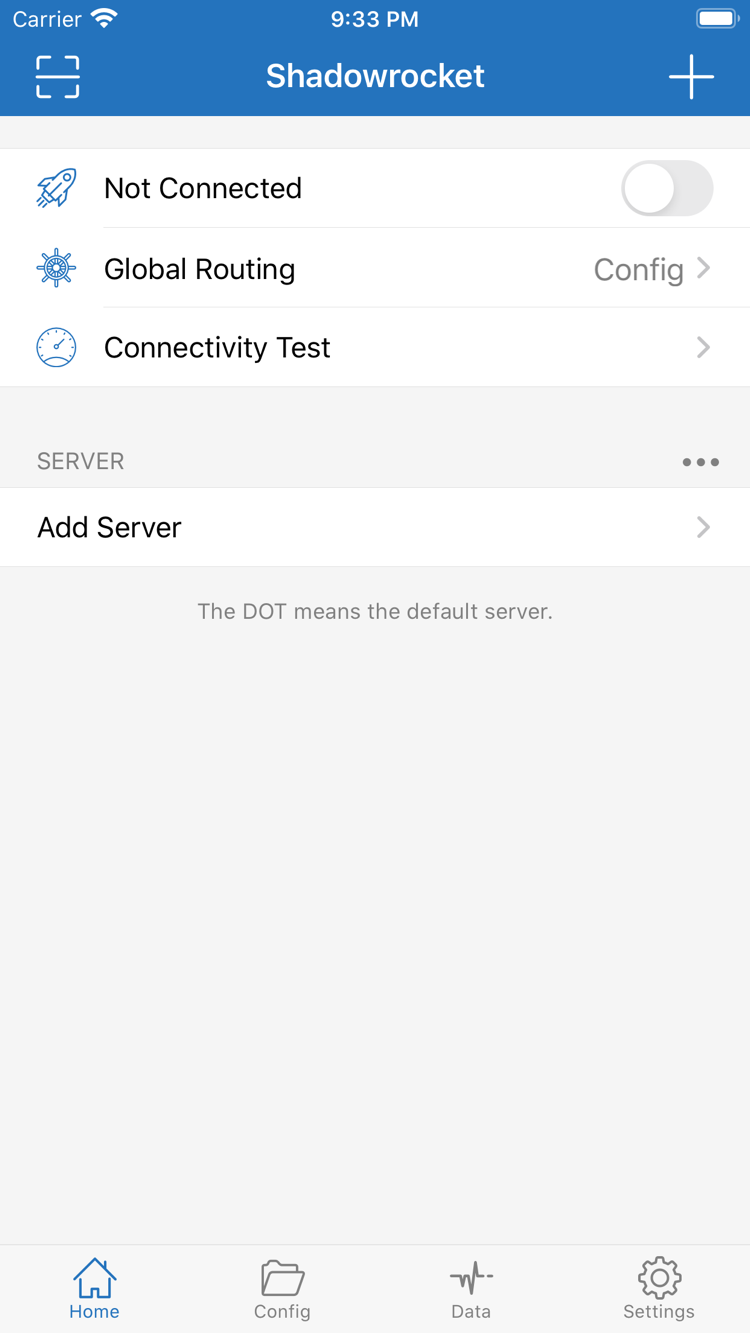
First, distinguish server details, configuration files, and the connection toggle. Then choose what to adjust. The examples below explain real rule syntax and settings; they are not screenshots of the app.
Rule-Based Routing
Rules select an action based on conditions such as the domain or destination address. In Config, check the rules in the active configuration, then set Global Routing to Config to apply them. Rules are generally matched in order, so put narrower exceptions before broader conditions. FINAL handles requests that do not match earlier rules. To troubleshoot, find the matching rule first, then check whether its action is DIRECT or PROXY; the connection toggle alone is not enough. The syntax example on the right is illustrative: example.com does not represent the complete request path of any real website.
On Demand triggers connections when specified conditions are met; find it in Settings. When getting started, connect manually first and confirm that the server, Global Routing mode, and access results are as expected before setting up On Demand. Note the current network conditions before making changes, then check the connection on both your usual Wi-Fi and cellular networks. If the connection returns after you turn it off manually, review the On Demand conditions rather than repeatedly deleting the server. On Demand controls when connections start; it does not replace Rule matching order or supply missing subscription or server details.
In Add Server, choose a Type and enter the details from your existing server configuration. Shadowsocks, VMess, VLESS, Trojan, WireGuard, and other types use different fields; copying only Host and Port while leaving the rest at their defaults may not work. Check the protocol type first, then verify authentication, transport, and TLS settings. Use the fields shown in your current version of the app as your reference. Protocol names describe connection methods, not availability or speed rankings. If a connection fails after import, compare each field with the original details instead of switching Type at random.
Shadowsocks
VMess
VLESS
Trojan
HTTP
SOCKS5
WireGuard
Hysteria2
Subscribe
Subscribe imports and updates subscriptions you already have. Before adding one, make sure the link is complete, including its path and query parameters, and that it is a subscription URL rather than a webpage with instructions. After the first import, check that the expected entries appear in the list, then select a server to test. An update fetches the remote content again, so understand what may be overwritten before renaming or editing entries locally. If the list is empty after an update, check the link, account status, and returned content, then contact the original service provider. Subscription links may contain access credentials; do not share them in public screenshots, logs, or support requests.
Config manages routing rules and related settings, while the server list stores connection destinations. They serve different purposes. Check which configuration is active before editing its Rule entries, so you do not change an unused copy. Save a restorable copy before editing, change one type of setting at a time, and verify the result with an actual request. If you use iCloud sync, check the sync status on both devices and confirm which file is selected; syncing does not guarantee that every runtime state will match. Configurations may contain personal information, so check server addresses, authentication fields, and remote links before sharing one.
Connectivity Test provides an initial check of connection performance. The Test Method in Settings affects how the test runs, while Diagnostics can help investigate further. Results reflect the network and method at that moment; they do not replace testing the website or app you actually want to use. Traffic records in Data can help confirm whether requests were made, but an increase in traffic does not prove that the rule action was correct. Check in this order: server reachability, whether the connection was established, and which rule matched the request. When saving troubleshooting notes, record the network and steps taken, but remove credentials and complete subscription links.
The App Store is the only place to get Shadowrocket. Check the App Store listing for system requirements and whether the purchase is universal.
iPhone
After checking the product details on the App Store, purchase the app. The first time you open it, add a server or subscription you already have, then follow the system prompt to allow the VPN configuration. This permission creates the system configuration the client needs; it does not confirm that your server details are correct.
Check your purchased items using the Apple ID you originally used, then see whether you can download the app again. The layout may vary by screen size. Find options by their names, such as Home, Config, and Settings, rather than relying on where a button appears in a screenshot.
Shadowrocket is also available on the App Store for Mac and Apple TV. Check the App Store listing for system requirements and whether the purchase is universal.
Having purchased the app does not mean a new device already has the information needed to connect. Before switching devices, confirm that your server details, current configuration file, and existing subscription can be restored. After migrating, connect manually before changing automation settings. If the App Store still shows a price, first check the account currently used for purchases and the product ID instead of paying again.
These steps assume you already have your own subscription or server details. Start with the minimum setup needed to connect, then add rules and On Demand conditions.
Add a Server or Existing Subscription
From Home, open Add Server and choose the Type that matches your existing details. If entering them manually, check Host, Port, and authentication fields one by one. If importing an existing subscription, make sure the link is complete. Save, return to the list, and confirm that the entry appears and the server you want to use is selected. Saving successfully does not guarantee a connection; an incorrect address may still pass the form's checks.
If the list is empty, check the import results before toggling the connection repeatedly. If an entry appears but its details are incomplete, compare it with the original configuration. QR codes and subscription links may contain credentials; handle them only on trusted devices and never post their full contents in public discussions.
Choose Global Routing
Global Routing offers three modes: Config, Proxy, and Direct. Config applies the actions in the active configuration's rules; Proxy routes everything through the proxy path; Direct uses a direct connection. Choosing a mode and choosing a server are separate steps, so check the current mode even after selecting a server.
For everyday rule-based routing, use Config and make sure the configuration you need is active. To investigate the route for a destination, you can temporarily switch modes for comparison if you understand the scope of the change, then restore your original setting. Direct can help distinguish a local network issue from a proxy-path issue, but it does not prove that your rules are working.
Connect and Verify Requests
Turn on the connection from Home and follow the system prompt to authorize the VPN configuration. Run Connectivity Test first, then visit the website or app you actually need. Check whether the connection status, access result, and matched rule agree. A connected status only confirms that the connection state changed; it does not guarantee that every destination is reachable.
If a test fails, preserve the current state and change one thing at a time. Check that the regular network works, then verify the server details, and finally check DNS and rules. If the issue began after switching networks, note which network it occurred on. Results can vary with the test method, destination, and time, so a single latency reading cannot establish that the entire connection path is working.
Shadowrocket is a closed-source commercial app. Use the App Store product page to verify purchase, compatibility, and update information.
Developer, Official Icon, and App ID
Open the product page from the Get the App page. Check that the app is named Shadowrocket and that the developer is Shadow Launch Technology Limited. The App ID should be 932747118; you can identify it in the product page URL as id932747118. Finally, compare the listing with the official icon shown in this site's header. Verify the name, developer, and App ID rather than relying on a nickname.
Similar names and icons in search results are not enough to confirm an app's identity. Open the full product page and review each detail; do not purchase based only on the first result in the search list. Check the price, compatibility, and purchase button on that same page. If anything differs from the identity details above, return to the Get the App page and open the specified product again.
App Store Availability and Account Region
App Store search results depend on the store region associated with your account. If the product page says the app is unavailable, first check the account and store region used for Media & Purchases, then review device restrictions and age-rating settings. The device's language and the App Store region are separate settings; changing the interface language does not change the store's content.
If you are considering changing your account region, first review requirements involving your balance, existing subscriptions, and payment method. Avoid changing multiple account settings in a row just to find an app. Check product availability, payment eligibility, and device compatibility separately so you do not mistake a store issue for a client connection problem. See the Getting the App guide for the full verification steps.
One-Time Purchase and Separate Connection Details
Shadowrocket is a one-time purchase. The U.S. Store reference price is $2.99; other storefronts show local currency, and the price on the App Store page before payment is the one that applies. The purchase covers use of the client app, not a server account or the ongoing availability of any network connection. Connection details still need to come from a subscription or server information you already have.
Restore Purchases, Use on Other Devices, and Updates
When changing devices or reinstalling, look for Shadowrocket in the App Store purchase history of the Apple ID used for the original purchase. Check the same purchase record on iPhone and iPad. Refer to the App Store listing for universal purchase availability, Family Sharing eligibility, and system requirements for each device. If you cannot find the purchase, check the purchasing account and purchase history first; do not assume the account signed in to the device is the same one used for App Store purchases.
Redownloading the app and restoring your personal configuration are separate processes. The App Store restores the app; check your backup or sync status separately for server entries, subscriptions, and configuration files. Updates are delivered through the App Store. Keep a restorable copy of your configuration before updating, then check the active configuration and your usual connections afterward. In the manual, look for settings by their English names rather than relying on a fixed screen position.
Continue with the topic that matches your question: App Store availability, protocol fields, or getting started. These articles focus on using the client and do not recommend sources for connection services.
Troubleshoot “can't find the app” separately from “can't make a payment.” Check the current store region, restrictions, and account status one by one before deciding what to do next. Avoid changing settings repeatedly before confirming the cause.
Explains the role of PrivateKey, PublicKey, Address, MTU, and Endpoint in your existing WireGuard details. Distinguish local parameters from Peer information and check that each value is in the right field.
Start with the differences between Global Routing, the connection toggle, and Config. This guide explains concepts that are easy to confuse when getting started. Understand what each setting affects before changing it.
First identify whether the issue involves a purchase, import, mode, or connection, then follow the relevant steps. Reinstalling is not a substitute for checking the cause.
Why do I need to select a server after importing a subscription?
Importing adds your existing connection details to the list. To connect, you still need to confirm which server is selected and whether Global Routing is set as expected. After an update, check that the selected entry is still there. See the subscription import and update guide for the steps.
Should I choose Config or Proxy?
Choose Config to route requests according to rules, and check that the configuration you need is active. Proxy uses the proxy path for all traffic; it does not mean rule-based routing is working. To check a specific rule, look at which rule actually matches rather than comparing toggle states. See the Global Routing guide.
Why can a successful latency test still be followed by access failures?
The test method and the destination, protocol, or rules used by a real request may differ. Check the current network, whether the destination is reachable, and which action the rules select; note the exact steps if needed. A test result does not guarantee ongoing availability. See the Connectivity Test guide.
Why are my settings missing after redownloading Shadowrocket on iPad?
App Store purchase history restores the app; personal settings must be restored or synced separately. First check the original device's backup and iCloud status, then confirm which file is in use. Do not purchase the app again just because the list is empty. See the purchase restoration guide.
Verify the App Store Product Details
Developer: Shadow Launch Technology Limited. App ID: 932747118. Before purchasing, check the price and device compatibility. After purchase, follow the official manual to import connection details you already have.